> ## Documentation Index
> Fetch the complete documentation index at: https://docs.sonarx.com/llms.txt
> Use this file to discover all available pages before exploring further.
# How To Set Up A Snowflake Full Account
> If you’re new to Snowflake, this guide will help you create a free Snowflake Full Account.
### CREATING A SNOWFLAKE FULL ACCOUNT
To create a free Snowflake account, [click here](https://signup.snowflake.com/?trial=startup).
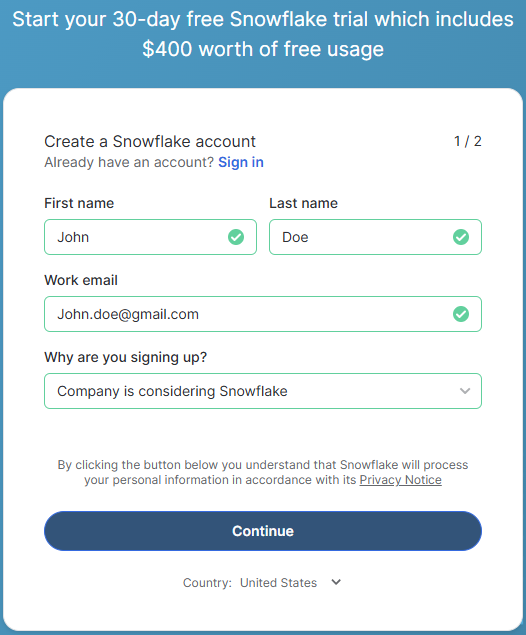
Fill out the requested information and click on the blue “Continue” button to proceed.
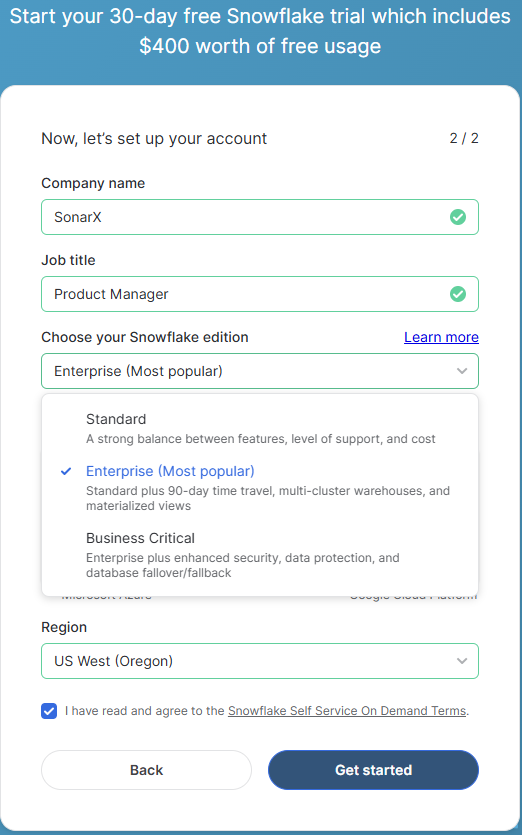
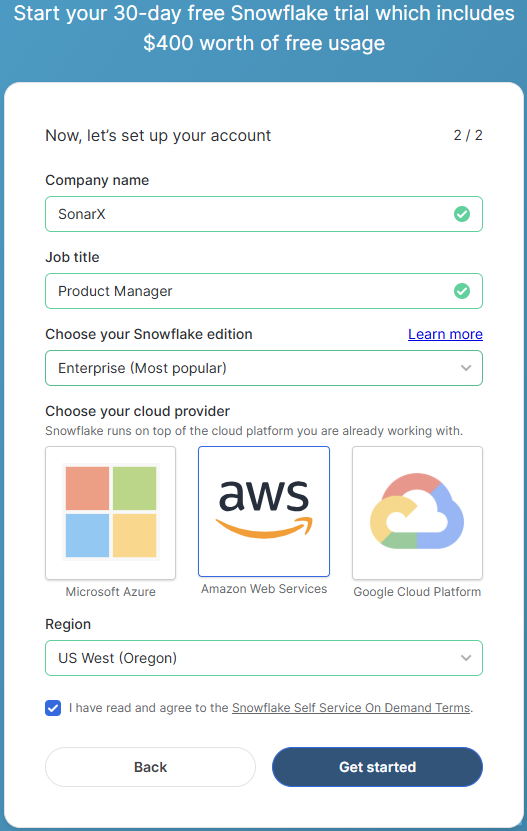
 Then, select the Enterprise edition and choose your cloud provider. **Ensure your region is set to US West (Oregon), as you will not be able to access the share from another region, and ensure that your cloud provider is set to AWS.** Read and agree to Snowflake’s terms and conditions, and select the blue “Get Started” button.
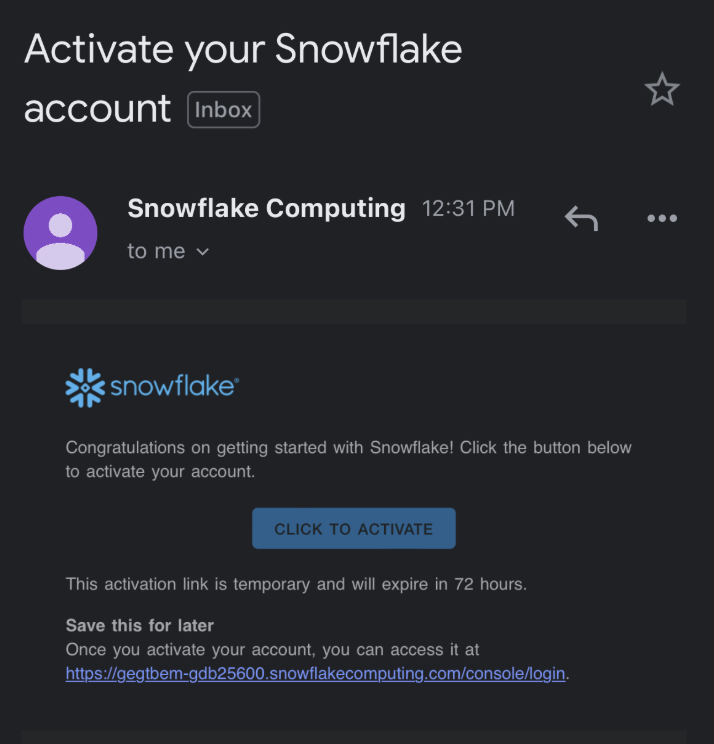
 You should receive an email with a link to activate your account, shown below
 After clicking the link, you will be prompted to choose a username or password. Once you have filled in the required information, select the “Get started” button to continue.
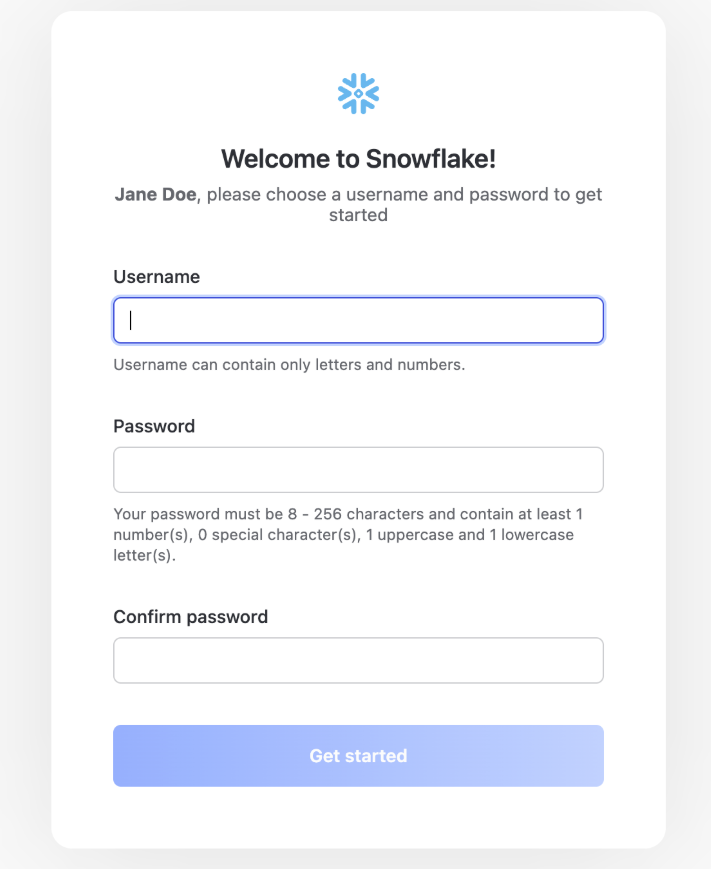 You have now created a Snowflake account!
Move on to the next section to access your SonarX data share.
### ACCESSING YOUR DATA SHARE
To access your data share, there are two prerequisites you need to accomplish before proceeding:
1. Ensure your account region is set to **US\_WEST\_2 (Oregon)**.
2. Share your account identifier with SonarX via email, Slack, or preferred method.
Next, you must share your account identifier with SonarX. Hover over the account and click the copy button (circled in red) to copy your complete account identifier.
### GETTING YOUR DATA
Once SonarX has granted you access to your data share, go back to your dashboard and navigate to the “Data Products” section on the left-hand side of the dashboard. Under data, go to private sharing to view your private data shares. SonarX’s data share should be visible to you. Click the blue “Get” button to save the data share.
You have now created a Snowflake account!
Move on to the next section to access your SonarX data share.
### ACCESSING YOUR DATA SHARE
To access your data share, there are two prerequisites you need to accomplish before proceeding:
1. Ensure your account region is set to **US\_WEST\_2 (Oregon)**.
2. Share your account identifier with SonarX via email, Slack, or preferred method.
Next, you must share your account identifier with SonarX. Hover over the account and click the copy button (circled in red) to copy your complete account identifier.
### GETTING YOUR DATA
Once SonarX has granted you access to your data share, go back to your dashboard and navigate to the “Data Products” section on the left-hand side of the dashboard. Under data, go to private sharing to view your private data shares. SonarX’s data share should be visible to you. Click the blue “Get” button to save the data share.
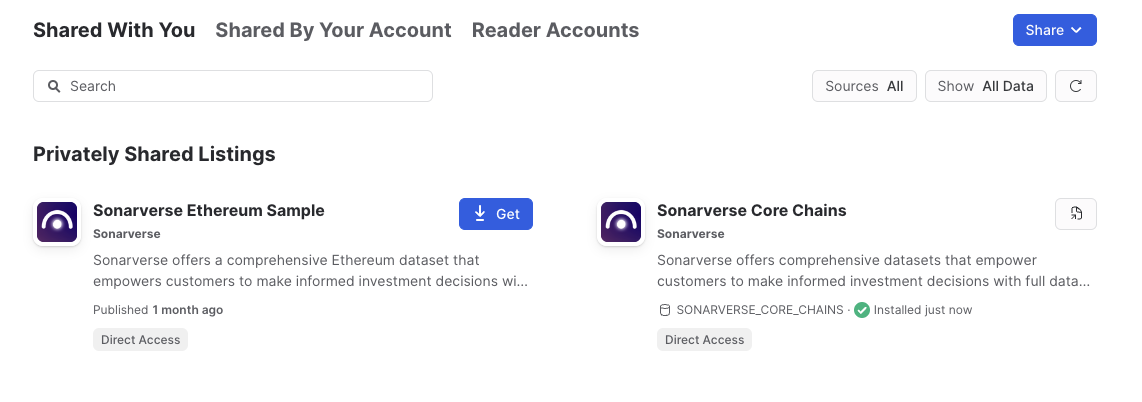 You can change the name of the database and curate which roles should be able to access the data.
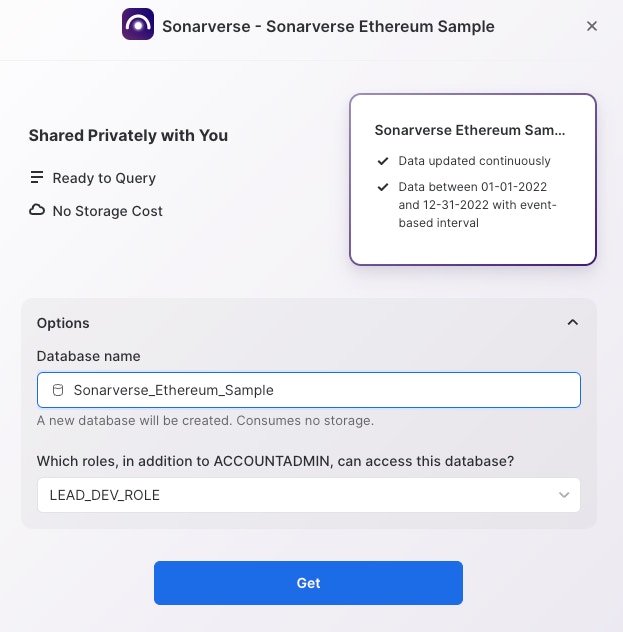 You now have access to SonarX’s data share. Click the “Query Data” button and visit Sample Queries to begin running our sample queries.
### LEARN MORE ABOUT SonarX
* Visit our [website](https://www.sonarx.com/)
* Check out all of our documentation
* For any questions, requests, or feedback, send us an email at [onboarding@sonarx.com](mailto:onboarding@sonarx.com)
You now have access to SonarX’s data share. Click the “Query Data” button and visit Sample Queries to begin running our sample queries.
### LEARN MORE ABOUT SonarX
* Visit our [website](https://www.sonarx.com/)
* Check out all of our documentation
* For any questions, requests, or feedback, send us an email at [onboarding@sonarx.com](mailto:onboarding@sonarx.com)