> ## Documentation Index
> Fetch the complete documentation index at: https://docs.sonarx.com/llms.txt
> Use this file to discover all available pages before exploring further.
# How To Access And Query Snowflake Data Shares
> For users with a Snowflake Full Account (Customers with a Reader account do not need it)
### HOW TO GET STARTED WITH SNOWFLAKE
1. Go to Data Products -> Private Sharing -> Shared With You
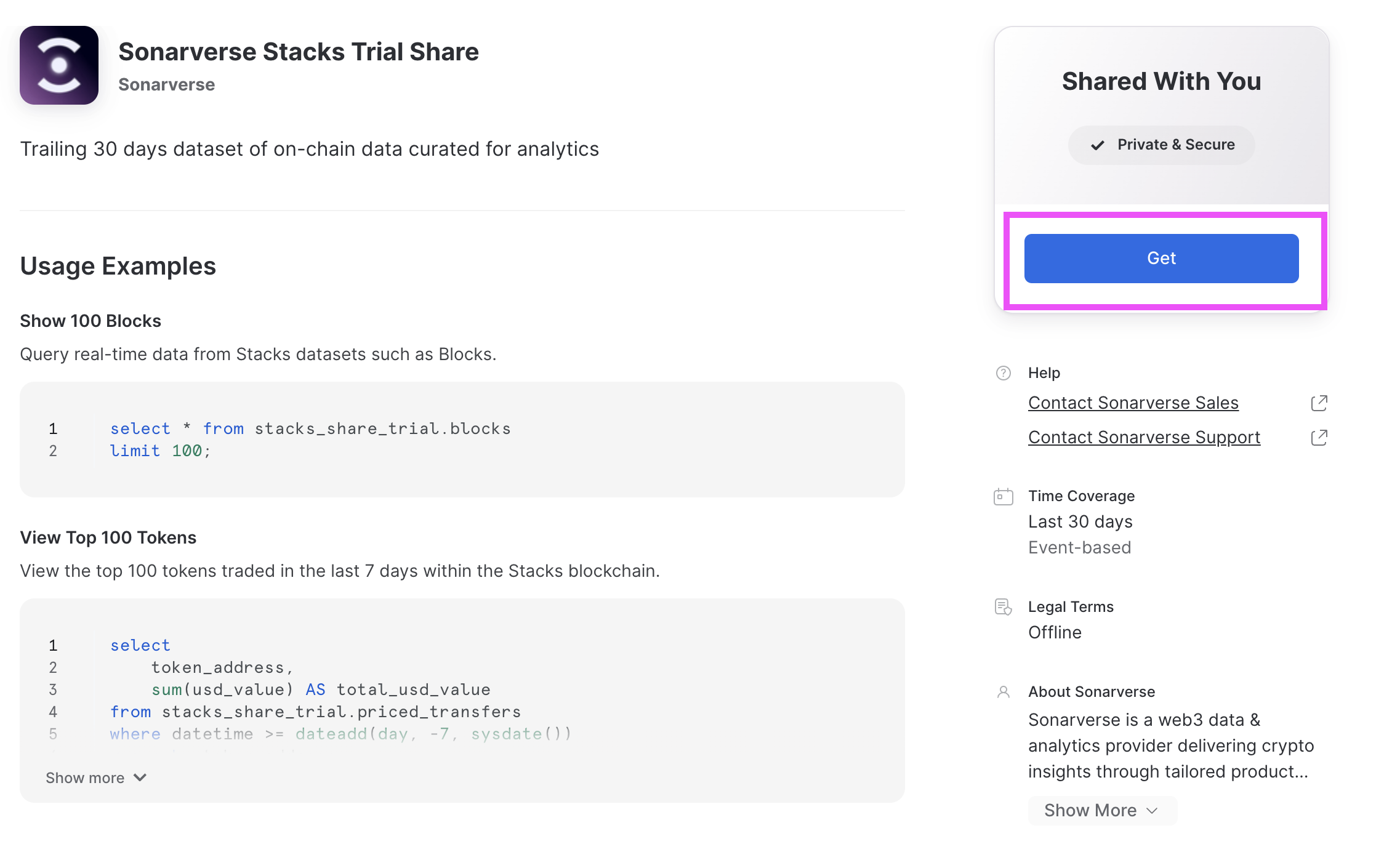
2. Click on one of the shares. I will be using the "Sonarverse Stacks Trial Share" as an example.
3. Click "Get"
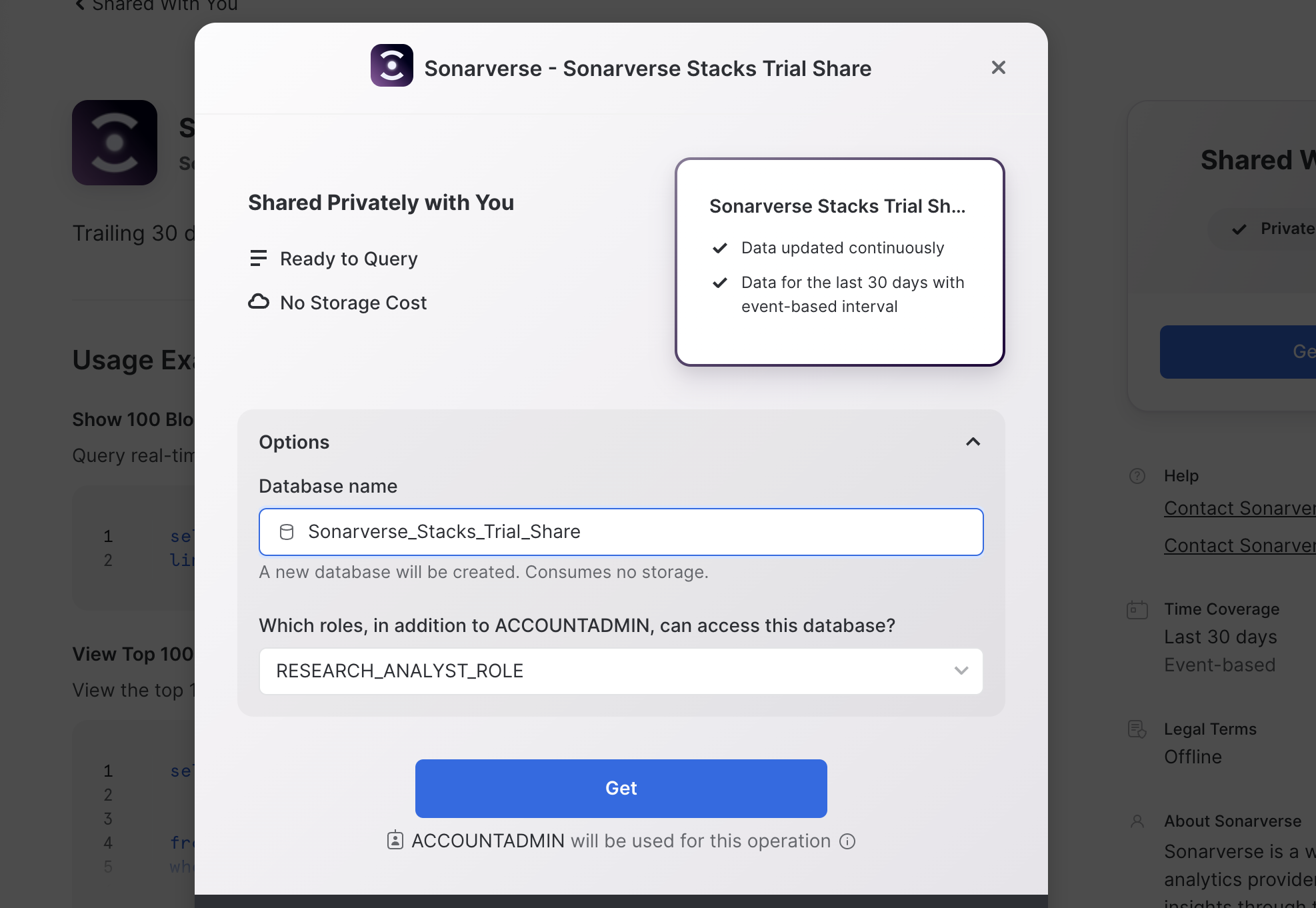
 4. Denote the database name and which roles can access that share. E.g. if you grant the RESEARCH\_ANALYST\_ROLE permission to access this database, any user with the RESEARCH\_ANALYST\_ROLE can access the database.
 5. Repeat steps 1-4 for the any other provisioned shares.
6. Open a worksheet and run the query "show databases;" to view the databases that are automatically created from these shares. From there you can create your own tables from the databases.
### HOW TO PROVISION A NEW USER IN SNOWFLAKE
Customers should share the same Snowflake Account. That way they can share the same infrastructure and consolidated billing, if need be.
You can do so by CREATE USER command or via the UI from:
* Admin -> Users & Roles
5. Repeat steps 1-4 for the any other provisioned shares.
6. Open a worksheet and run the query "show databases;" to view the databases that are automatically created from these shares. From there you can create your own tables from the databases.
### HOW TO PROVISION A NEW USER IN SNOWFLAKE
Customers should share the same Snowflake Account. That way they can share the same infrastructure and consolidated billing, if need be.
You can do so by CREATE USER command or via the UI from:
* Admin -> Users & Roles
 ### HOW TO GRANT ACCESS/PRIVILEGES FOR SNOWFLAKE USERS
Here is a series of useful scripts to help you get started on Snowflake.
1. Creates a READER\_ROLE to access Snowflake data
2. Creates a READ\_WH to run compute on Snowflake
3. Grants permission on READ\_WH to the new READER\_ROLE
4. Grants IMPORTED PRIVILEGES on data shares to READER\_ROLE
5. Grants READER\_ROLE to Users
```
use role accountadmin;
-- Create Reader Role
create role reader_role;
grant role reader_role to role sysadmin;
-- Create Warehouse for Compute
create warehouse read_wh
with warehouse_size = 'X-SMALL'
auto_suspend = 60
auto_resume = true;
-- Grant Permission on Warehouse
grant usage, operate, monitor, modify
on warehouse read_wh to role reader_role;
-- Grant Data Share to Role
grant imported privileges on database sonarverse_solana_trial_share to role reader_role;
grant imported privileges on database sonarverse_solana_raw_trial_share to role reader_role;
grant imported privileges on database sonarverse_xrp_trial_share to role reader_role;
grant imported privileges on database sonarverse_xrp_raw_trial_share to role reader_role;
-- Grant Reader Role to User: change to your usernames
grant role reader_role to user x;
grant role reader_role to user y;
```
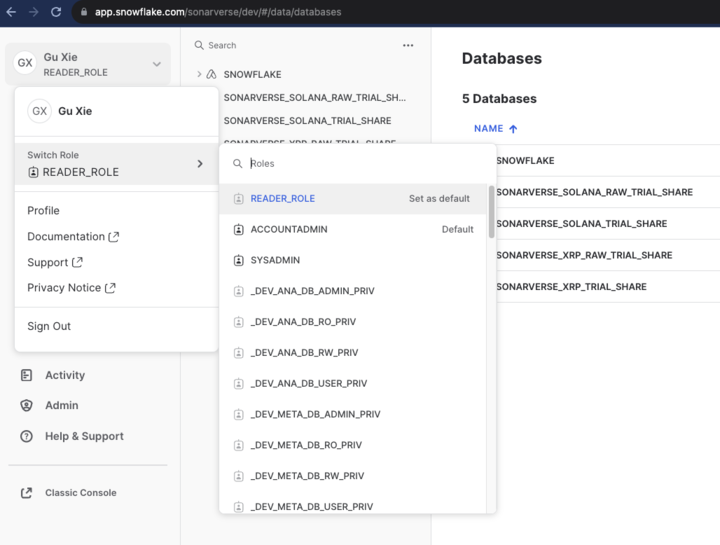
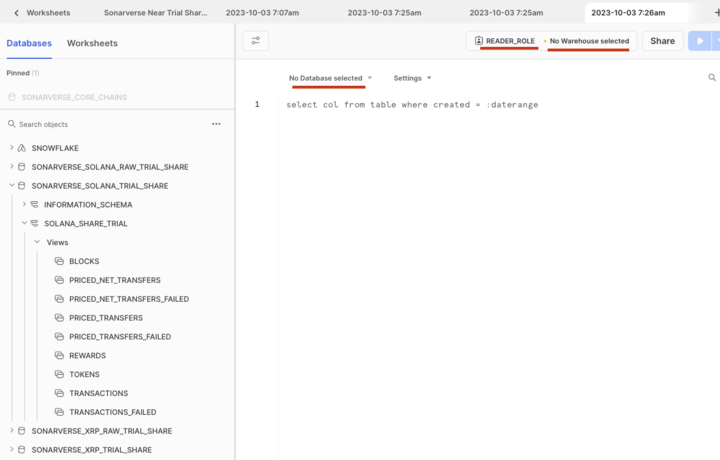
Once this is done, you can now switch to READER\_ROLE and you’ll see the data shares to query. Be sure to set your Role, Warehouse, and Database/Schema context on a Worksheet to run your queries in Snowflake.
### HOW TO GRANT ACCESS/PRIVILEGES FOR SNOWFLAKE USERS
Here is a series of useful scripts to help you get started on Snowflake.
1. Creates a READER\_ROLE to access Snowflake data
2. Creates a READ\_WH to run compute on Snowflake
3. Grants permission on READ\_WH to the new READER\_ROLE
4. Grants IMPORTED PRIVILEGES on data shares to READER\_ROLE
5. Grants READER\_ROLE to Users
```
use role accountadmin;
-- Create Reader Role
create role reader_role;
grant role reader_role to role sysadmin;
-- Create Warehouse for Compute
create warehouse read_wh
with warehouse_size = 'X-SMALL'
auto_suspend = 60
auto_resume = true;
-- Grant Permission on Warehouse
grant usage, operate, monitor, modify
on warehouse read_wh to role reader_role;
-- Grant Data Share to Role
grant imported privileges on database sonarverse_solana_trial_share to role reader_role;
grant imported privileges on database sonarverse_solana_raw_trial_share to role reader_role;
grant imported privileges on database sonarverse_xrp_trial_share to role reader_role;
grant imported privileges on database sonarverse_xrp_raw_trial_share to role reader_role;
-- Grant Reader Role to User: change to your usernames
grant role reader_role to user x;
grant role reader_role to user y;
```
Once this is done, you can now switch to READER\_ROLE and you’ll see the data shares to query. Be sure to set your Role, Warehouse, and Database/Schema context on a Worksheet to run your queries in Snowflake.
 ### HOW TO VIEW DATA DICTIONARY AND SAMPLE QUERIES IN SNOWFLAKE
Please note the following steps to view the Data Dictionary of a Data Share:
1. Go to Snowflake -> Private Sharing -> Shared With You
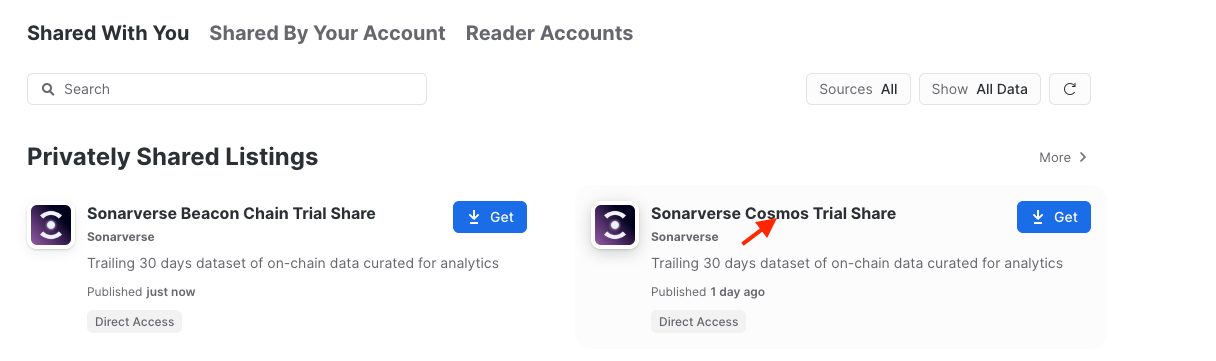
2. Click on the listing (using Sonarverse Cosmos Trial Share as an example)
### HOW TO VIEW DATA DICTIONARY AND SAMPLE QUERIES IN SNOWFLAKE
Please note the following steps to view the Data Dictionary of a Data Share:
1. Go to Snowflake -> Private Sharing -> Shared With You
2. Click on the listing (using Sonarverse Cosmos Trial Share as an example)
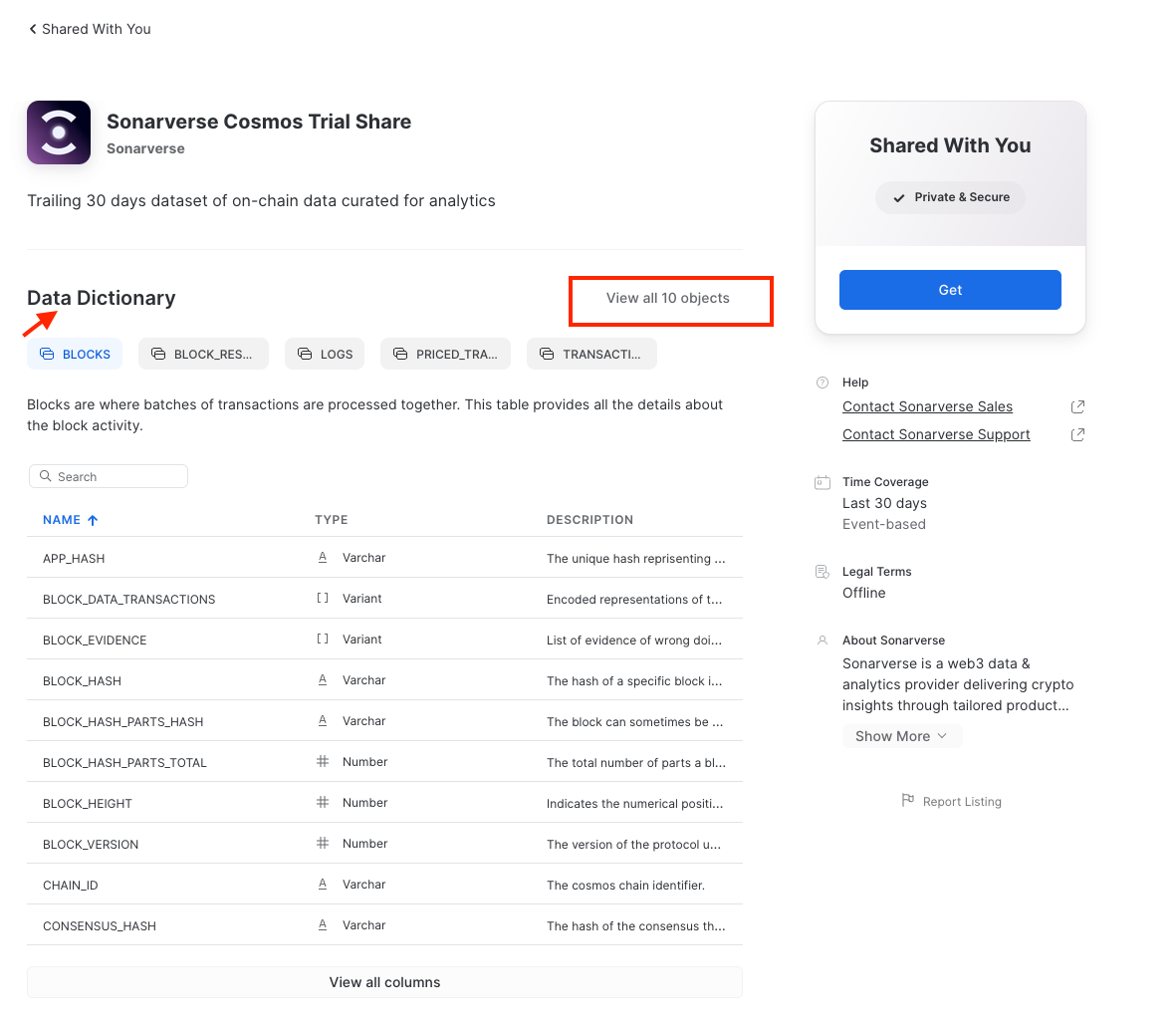
 3. You will be able to view the Data Dictionary of that share, where you can see all the table and column definitions directly in Snowflake.
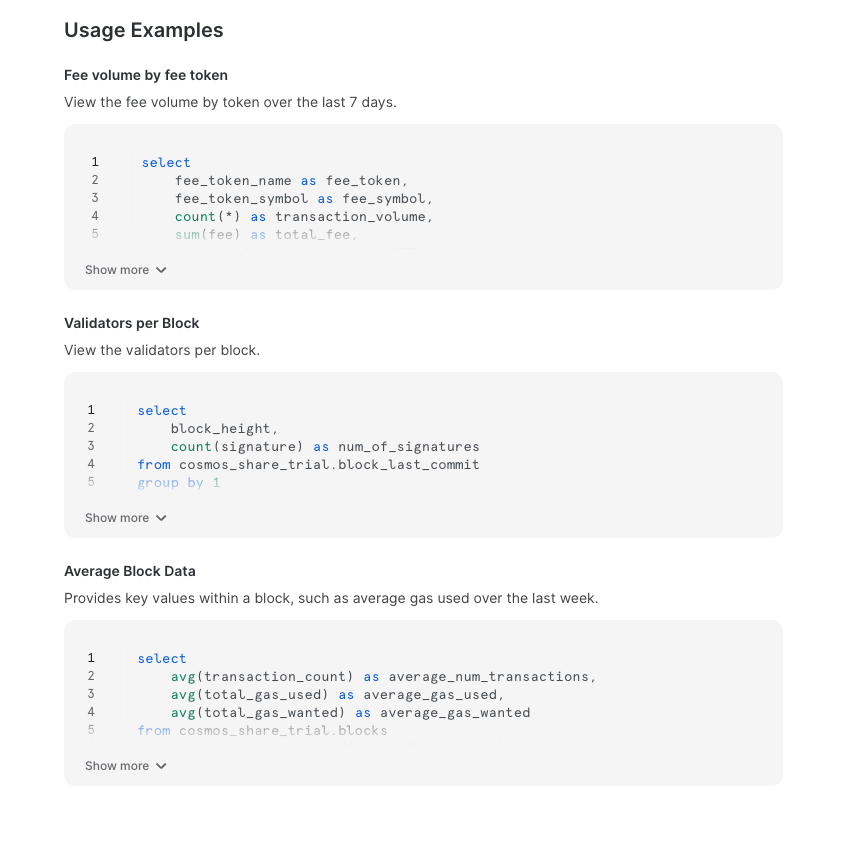
 4. Scroll further down to see sample queries